

Spring 2026 Admin Hub
Welcome Spring 2026 Book Fair Admins!
This page is your go-to hub for everything you need to run a smooth and successful fair. You’ll find key links, promotional resources, important updates, downloadable PDFs, wishlist and recommended list guidance, and quick answers to common questions — all in one place.
Reminder: Your Spring 2026 Book Fair runs February 16 – March 2, so be sure to review timelines, prep your lists, and share your fair link with families early to maximize engagement and sales.
We’re excited to partner with you — let’s make it a great Spring fair!
Book Fair Dates: Feb 16 - March 2
Book Fair Dates: Feb 16 - March 2

Book Fair Bingo!
Looking for a fun and simple way to get students excited about your Book Fair? Book Fair Bingo is an easy, ready-to-use activity that encourages students to explore the fair, discover new books, and read more!
How your school can use Book Fair Bingo:
Spark interaction with different genres, series, and grade-level sections
Encourage independent reading and book discovery
Create friendly classroom or grade-level competition
Boost overall Book Fair engagement
Getting started with Book Fair Bingo is simple — we’ve done the prep work for you!
Download the PDFs
Choose the age level version that works best for your class or school and download the ready-to-print Bingo cards below.Print & Distribute
Make copies for classrooms, the library, or to hand out at the office.Explain the Rules
The rules for the game are on the second page of the below PDFs so that they can be easily printed on the back of each card.Add Incentives (Optional but Fun!)
Offer simple prizes for students who complete a bingo and for your grand prize winner (we recommend at least one per class). EXAMPLES: bookmarks, extra recess, lunch with the principal, or a trip to the treasure chest.Celebrate & Share
Recognize participants during announcements or in the classroom to keep the excitement going!
That’s it! Book Fair Bingo is an easy way to increase engagement, encourage exploration, and get students reading more — all while building energy around your Book Fair.
Download the Book Fair Bingo PDFs below and start building momentum for a more interactive, high-energy Book Fair experience.
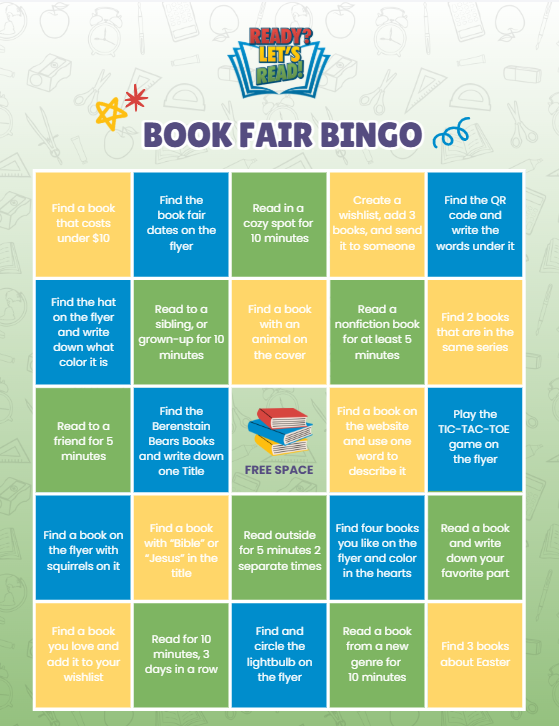
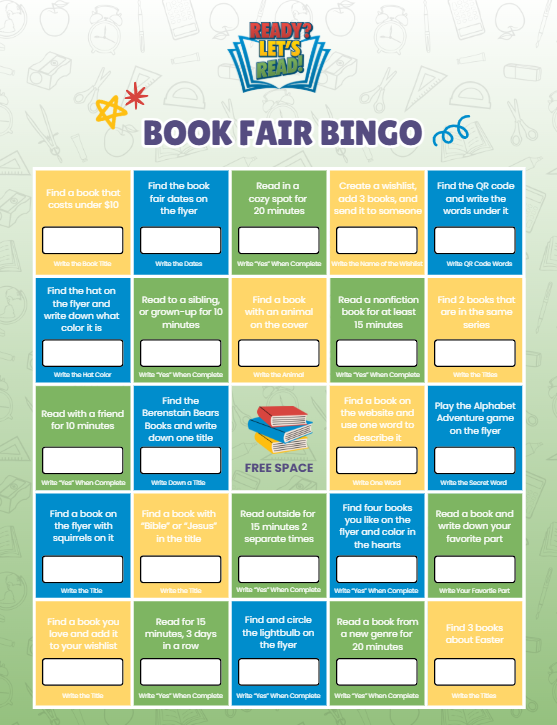
Looking for more ways to build excitement around your book fair? Here are more easy ideas for your students and their families!
How to Create & Publish Recommended Lists
Post Recommended lists and Wishlists to your book fair home page. Recommended Lists are created and managed using the Wishlist tool in your admin account. When set up correctly, these lists can be posted on your book fair website to help families shop with confidence.
-
You’ll need:
Your Admin login (your email you signed up with and the password you created)
Your school’s Book Fair URL (your unique link that was emailed to you or visit the Find My Book Fair page and search for your school.)
A few minutes to build and decide what type of lists you want to publish (examples below)
Tip: You can create as many Recommended Lists and Wishlists as you want. We recommend having at least 3 posted.
-
Go to your school’s Book Fair website.
Log in using your admin email and password.
Once logged in, click the person icon in the top right corner.
You should see a screen titled “My Account” with a menu on the left.
-
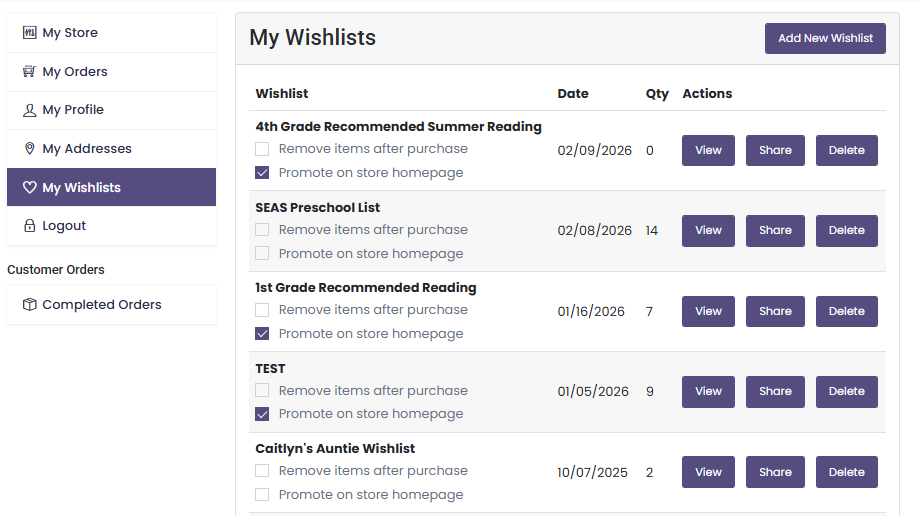
In the left-hand menu, click My Wishlists.
You’ll now see a table labeled My Wishlists.
This table shows:
Wishlist name
Date created
Quantity of books in the list
Action buttons (View, Share, Delete)
This is where all Wishlists and Recommended Lists are created and managed.
-
In the top-right corner, click Add New Wishlist.
Enter a Wishlist Name.
Use a name that parents immediately understand and clarify what type of list this is. (Wishlist or Recommended List)
Recommended Reading Lists:
Kindergarten Recommended Reading
4th Grade Recommended Summer Reading
Librarian-Recommended Titles
Wishlists:
Mrs. Adam’s Library Refresh Wishlist (Purchase for our library.)
4th Grade Book Collection (Help fill our classroom library)
Save the List.
You’ll now see your new list appear in the My Wishlists table.
-
Books are added to your Lists while browsing the Book Fair, not from inside the list itself.
How to add a book:
Navigate through the Book Fair as if you were shopping.
Click into a book you like to open the product page.
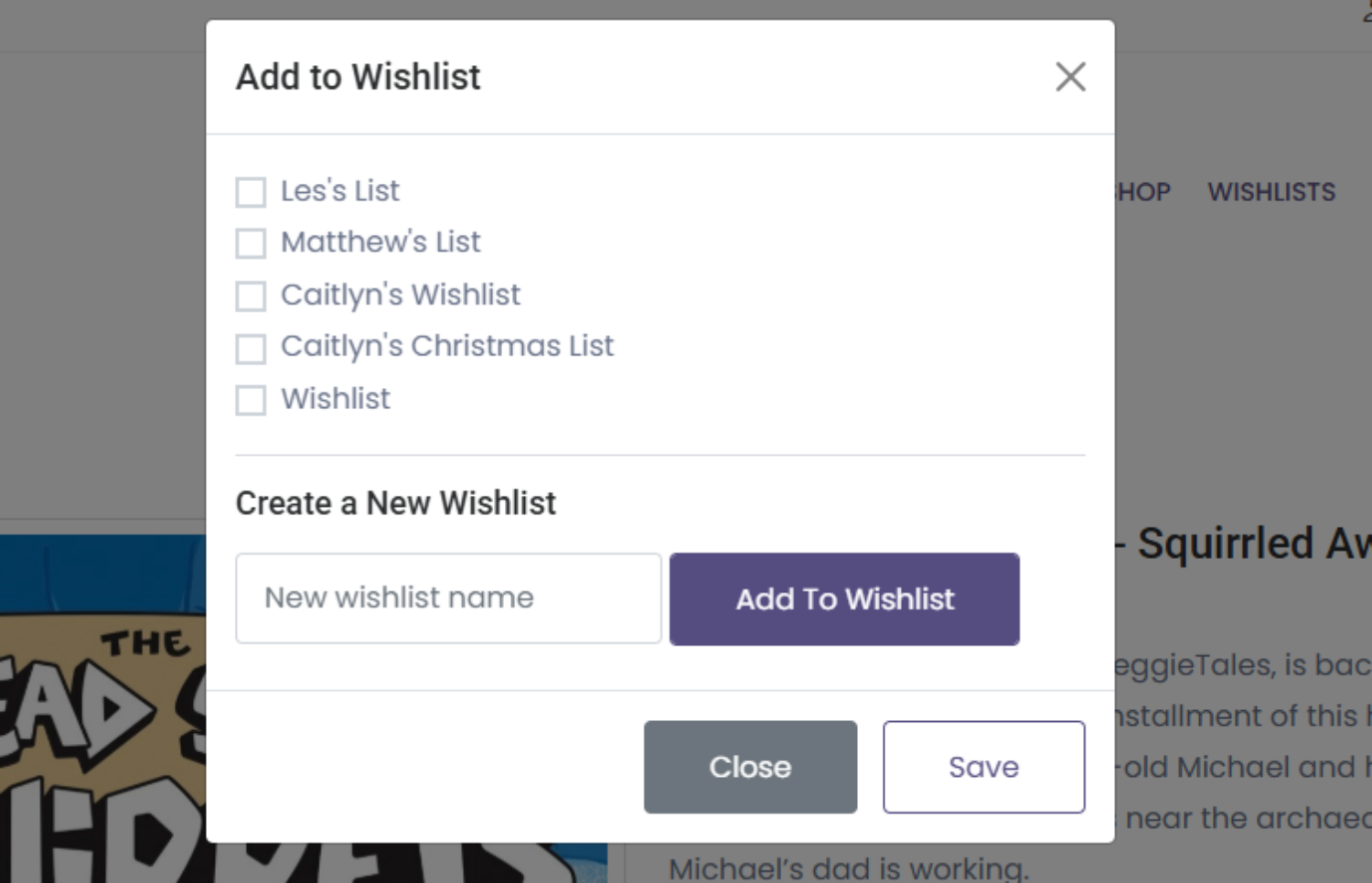
On the book’s product page, locate the small heart icon next to Add to Cart.
Click the heart icon.
Choose which list(s) to add the book to:
A menu will pop up showing all of your existing Wishlists.
Check the box next to the list (or lists) you want to add the book to, then hit Save.
You can add the same book to multiple lists if it fits more than one category.
Close the menu once your selections are made.
The book is now saved to your selected List(s).
-
Under each wishlist name, you’ll see two checkboxes:
1. Remove items after purchase
Leave unchecked (use for Recommended Lists): books stay visible even after purchase
Check this box only if you want books to disappear once purchased (traditional wishlist function).
2. Promote on store homepage
Check this to publish the list on the home page of your Book Fair website
Leave unchecked to keep the list private
Important: To make your list a public Recommended List, “Promote on store homepage” must be checked.
-
After checking Promote on store homepage:
Go to the Homepage of your Book Fair.
Scroll down to the Custom Recommended Reading Lists section.
Confirm your list is now posted.
If you don’t see it right away, refresh the page. If you still don’t see your list posted, make sure you are logged in under the same email you registered your school book fair with.
Contact us at info@readyletsread.com if you need help.
-
You can update lists throughout the fair.
To edit:
Go to My Account → My Wishlists
Click View
Add or remove books as needed
Changes save automatically (or click Save, if prompted)
Your updates will reflect on the Book Fair website.
-
My list isn’t showing on the website
Make sure “Promote on store homepage” is checked
Confirm you’re logged in using your admin email
Confirm you’re on your school’s specific Book Fair URL
I want to remove a list
Click Delete next to the wishlist
(This permanently removes it)
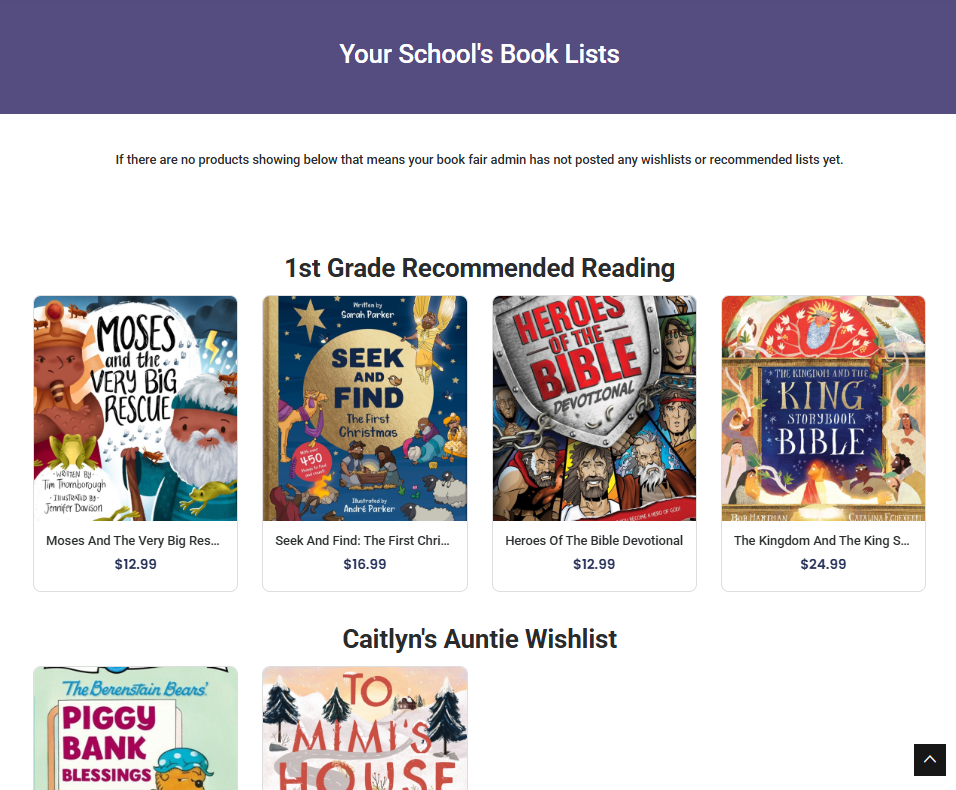
Traditional wishlists
Wishlists are still available for everyone to use just like normal. Here is an overview of how they work!
-
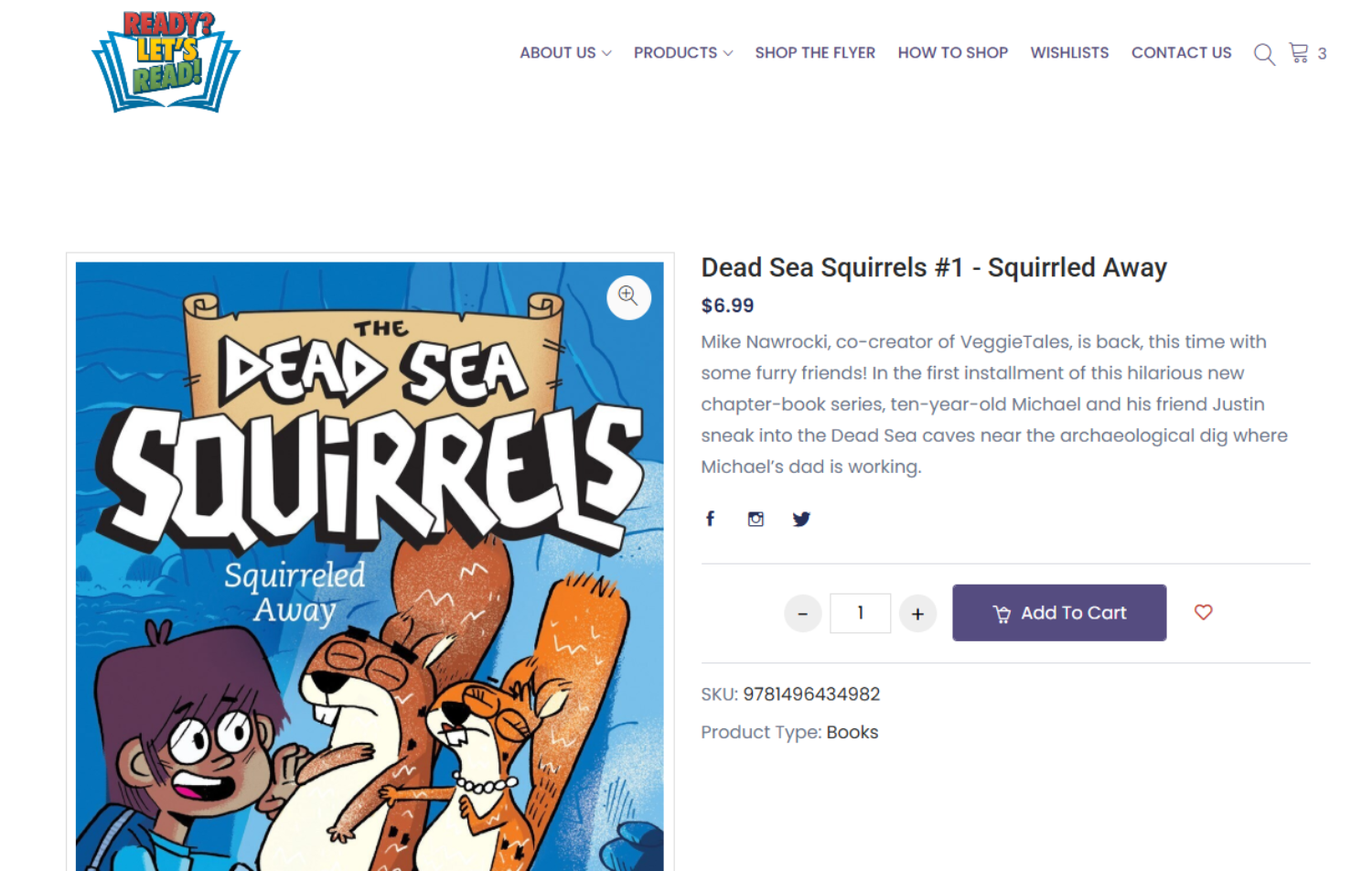
Browse your school’s book fair and click the ❤️ button on any book you love (inside the product page, it’s right next to the Add to Cart button).
-
Choose which Wishlist to add it to—you can save it to an existing list or create a brand new one.
-
Hit Save and your Wishlist will be updated instantly.
-
To view your lists, open the Wishlist tab (use the button at the top of the page or find it under your profile in the top right corner).
-
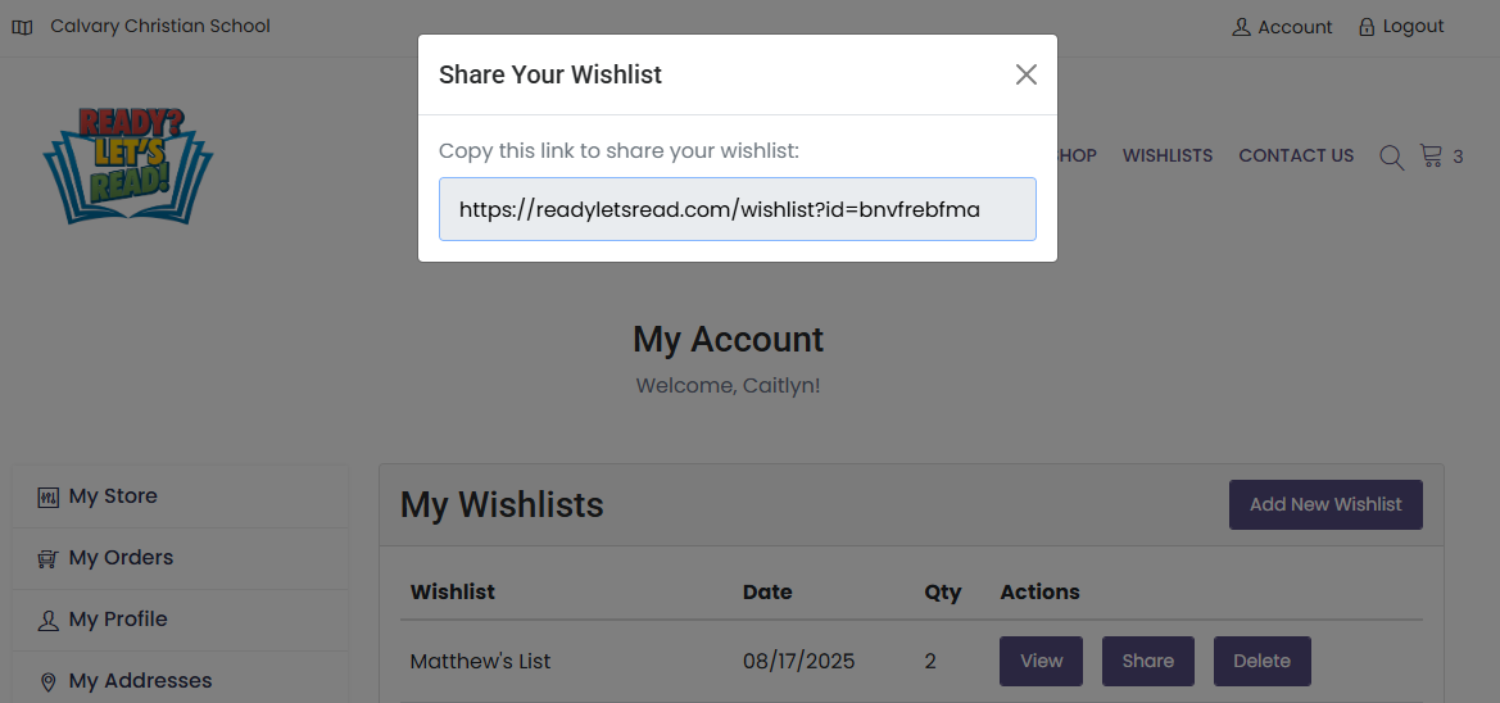
Share your list by selecting the "share" button and copying the displayed link. Send the link to friends and family!
Spring 2026 Book Fair Materials
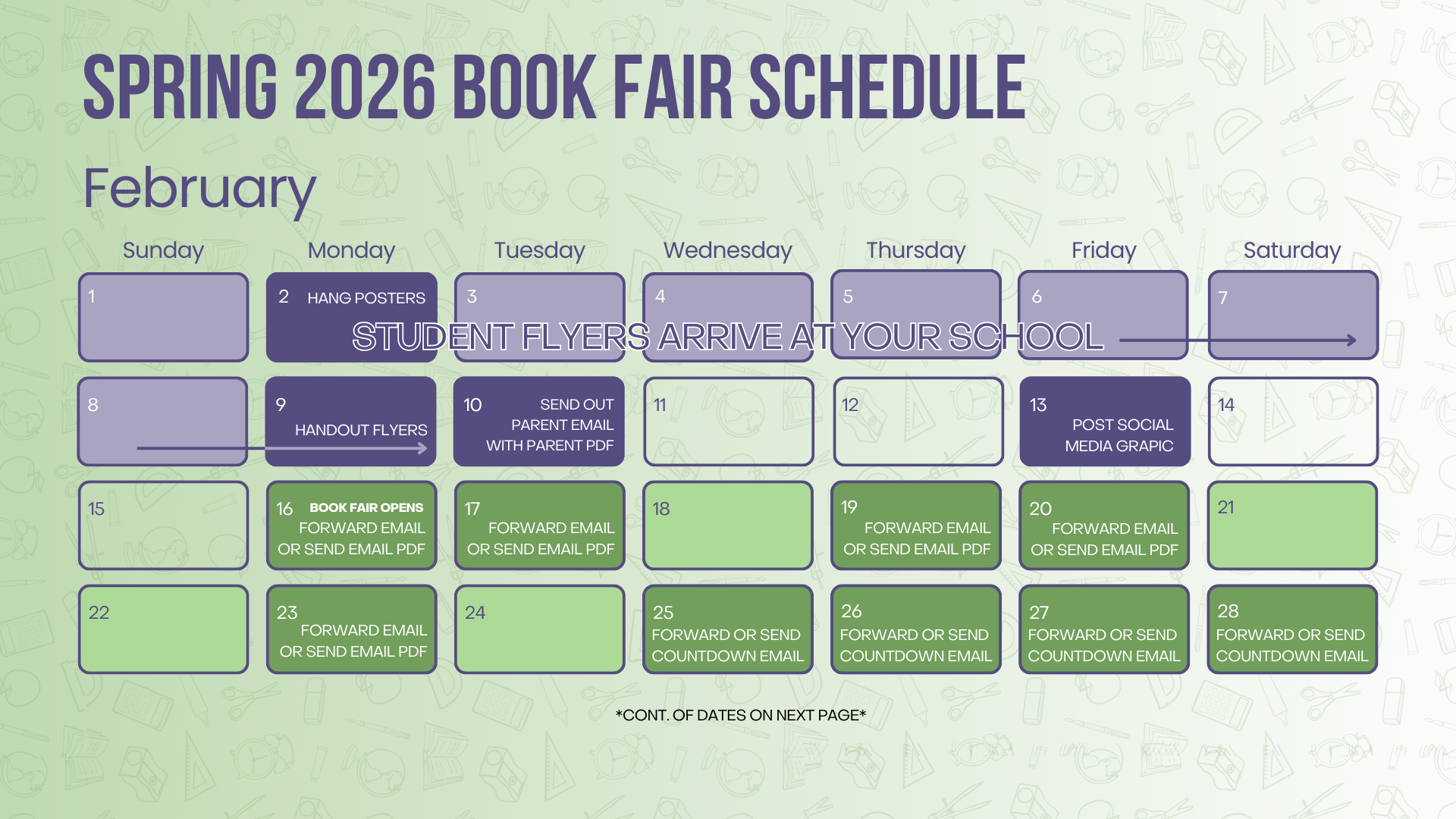
Admin Book Fair Calendar
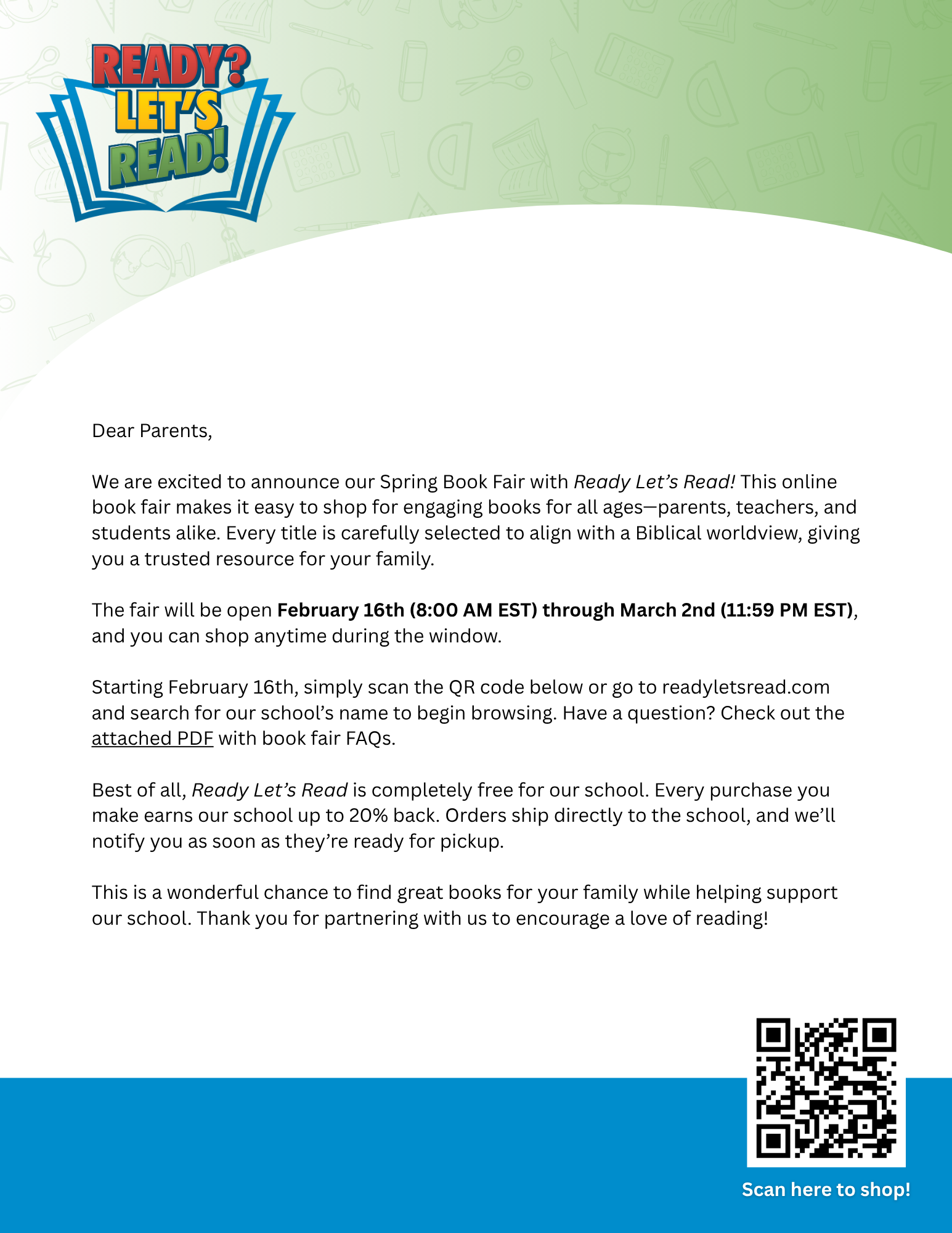
Our calendar gives you suggestions for when to use promotional materials plus all of the important dates for ordering and shipping.
posters and Promotion Materials
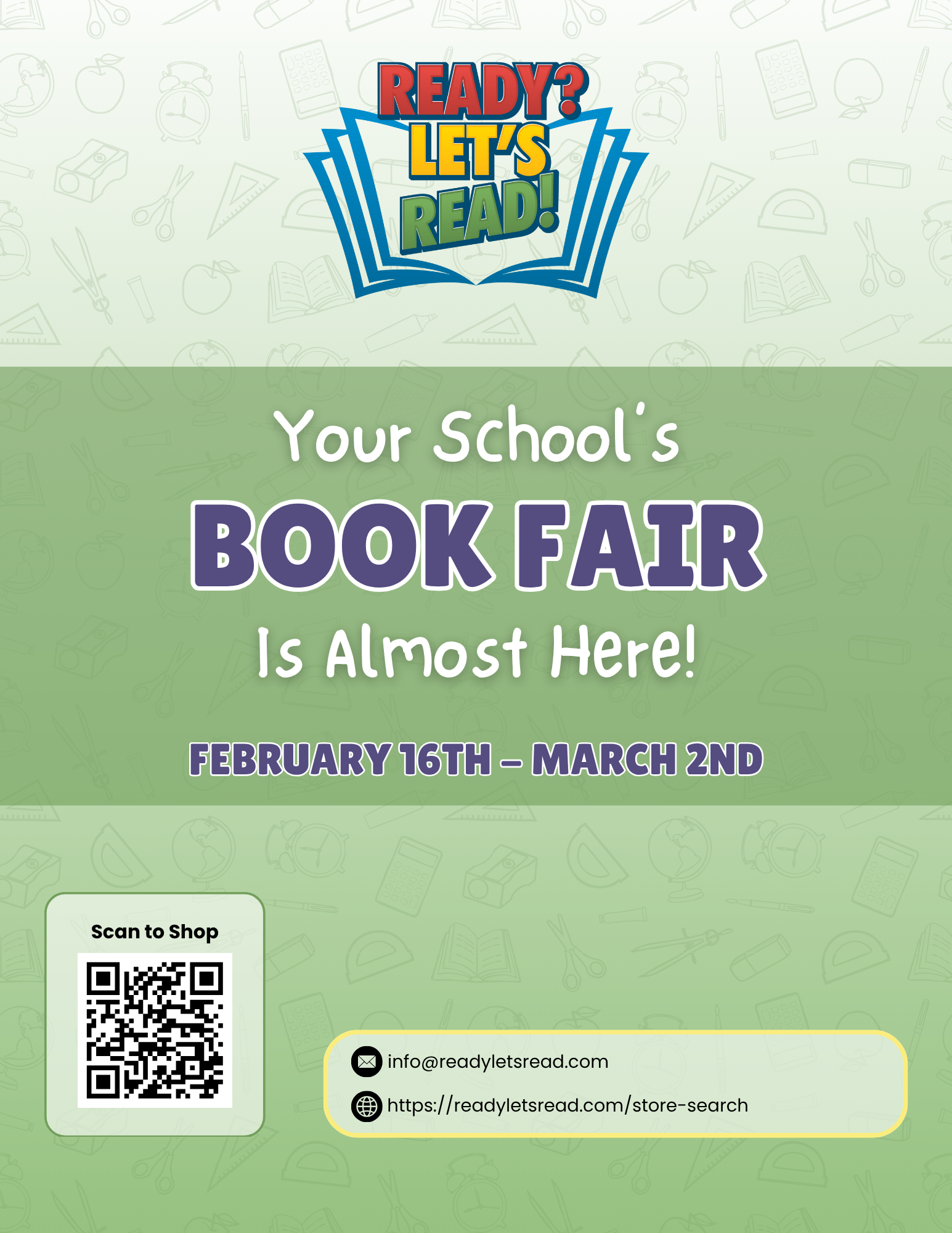
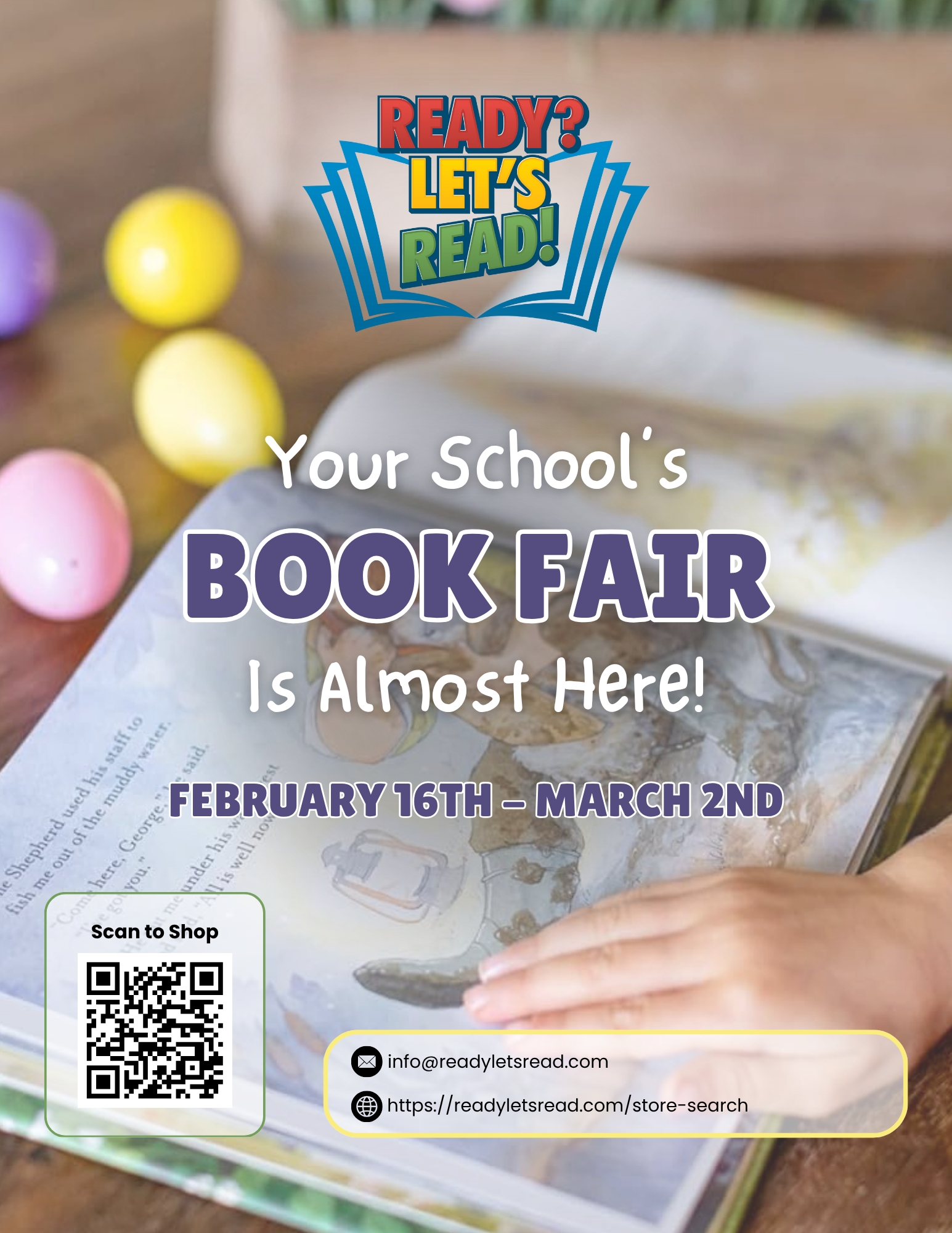
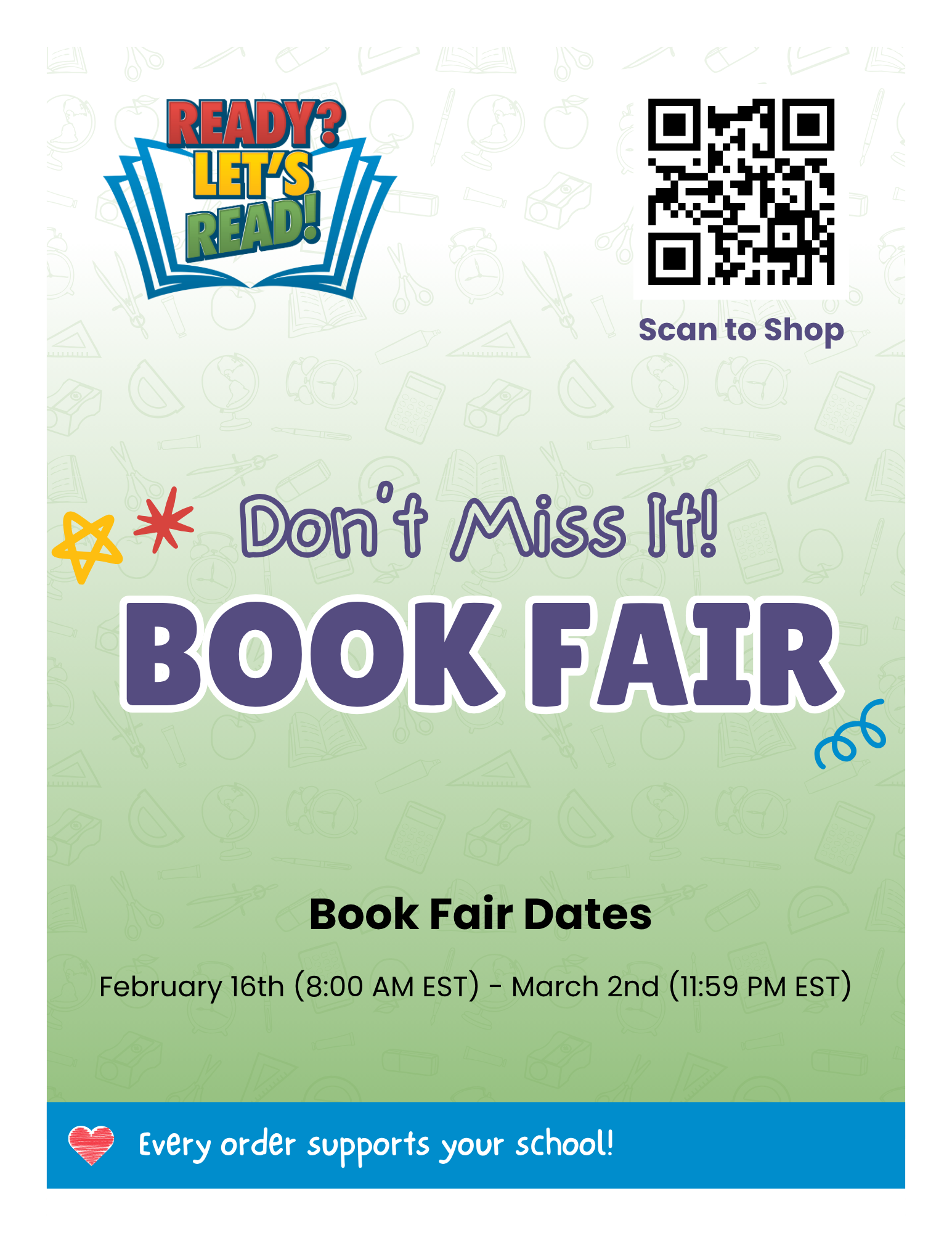
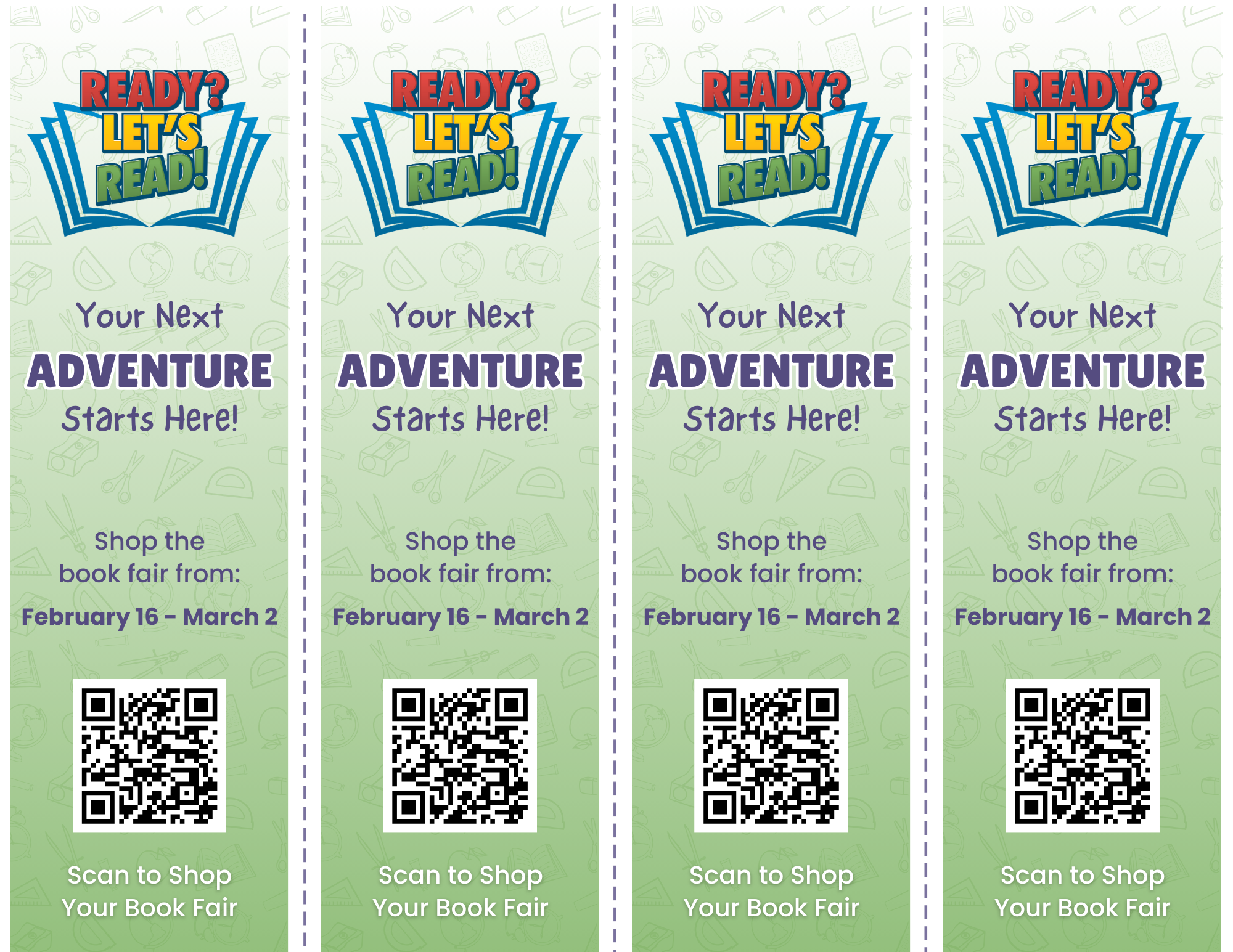
Social Media Graphics


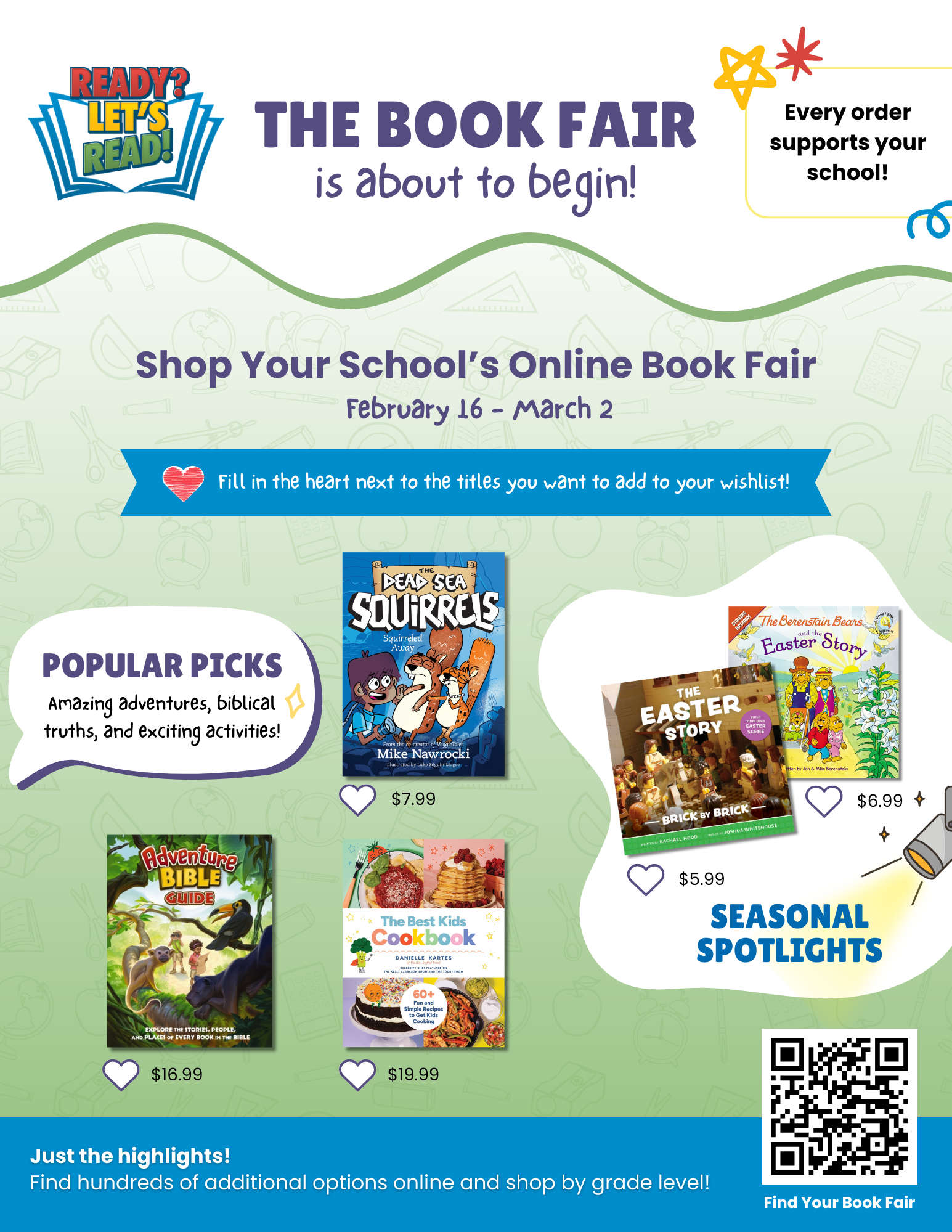
Book Fair Flyer & Bingo Activity
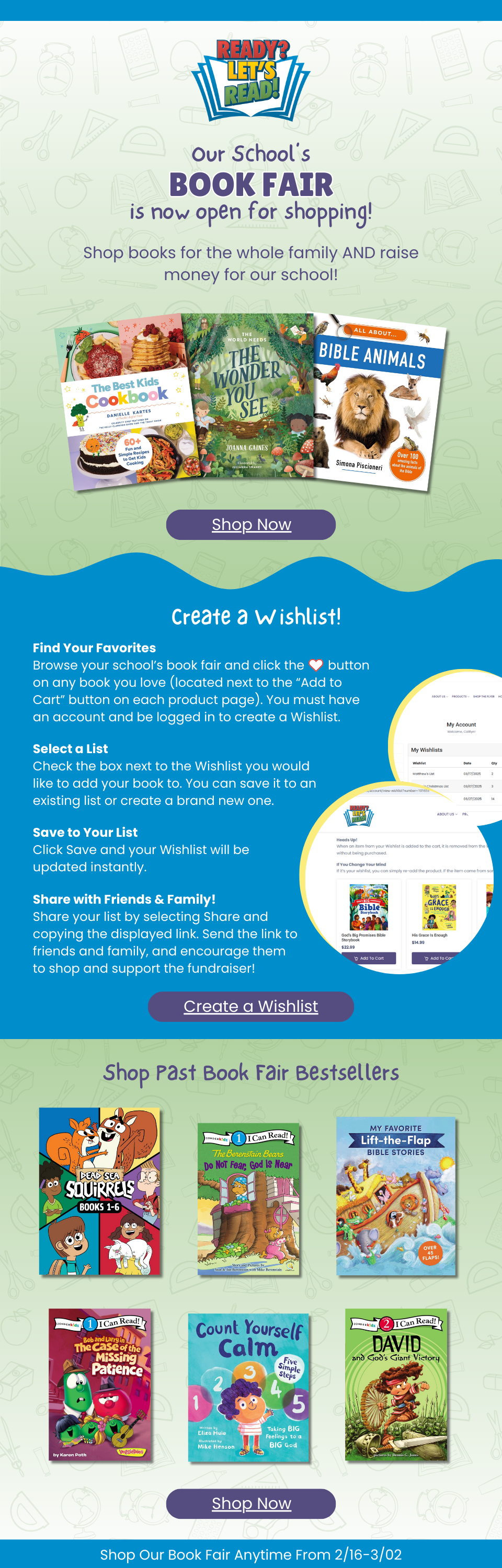
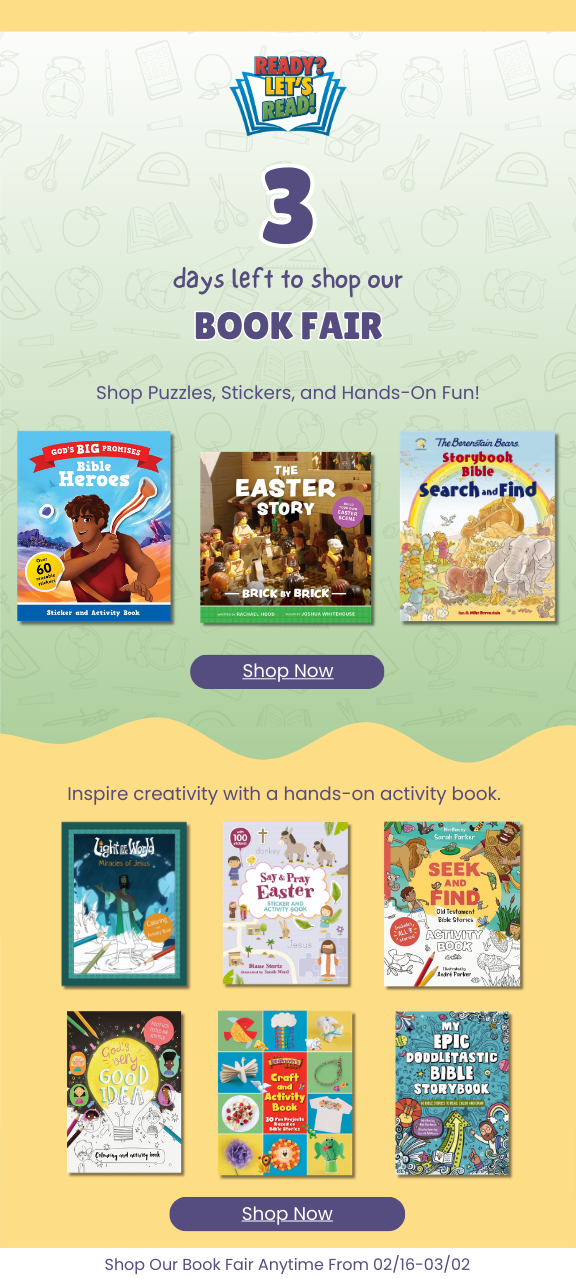
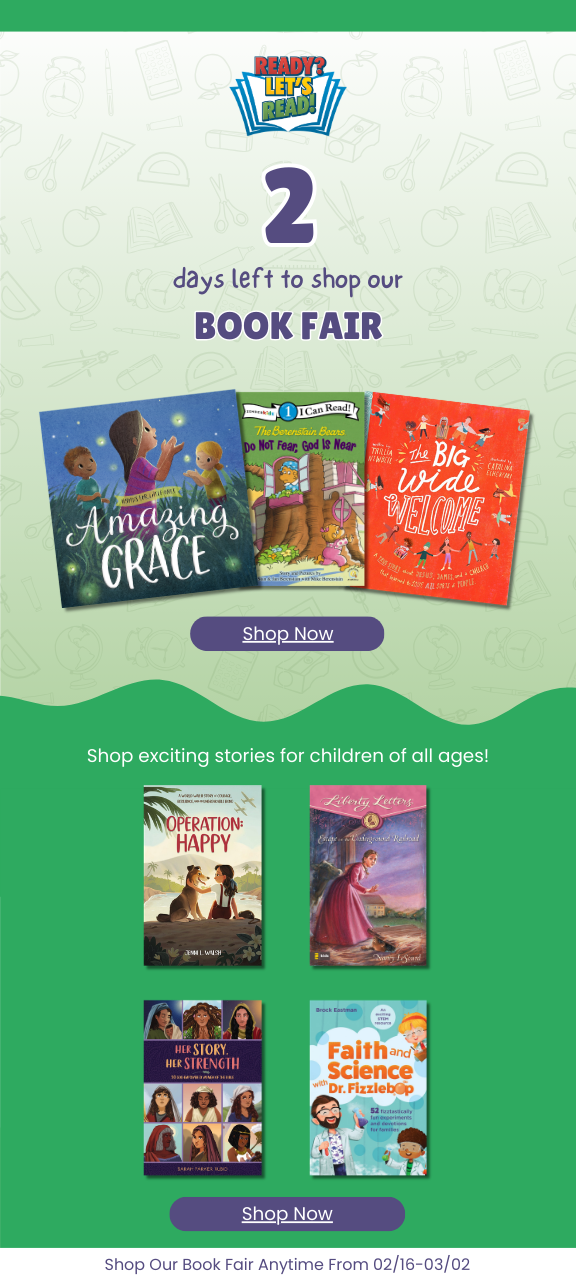
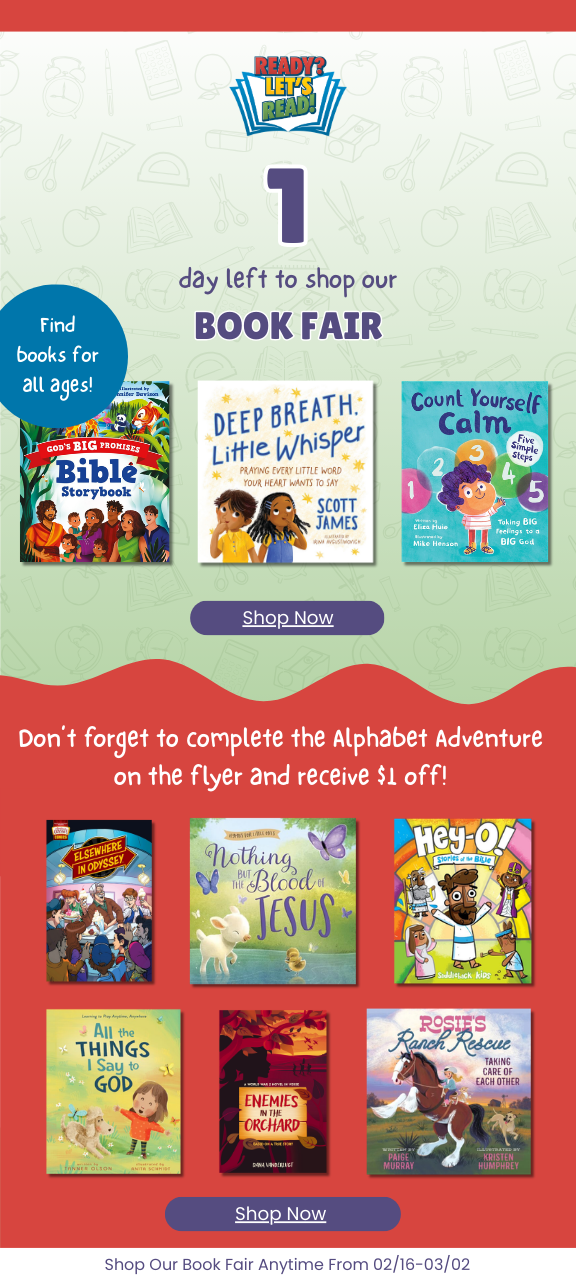
book fair emails
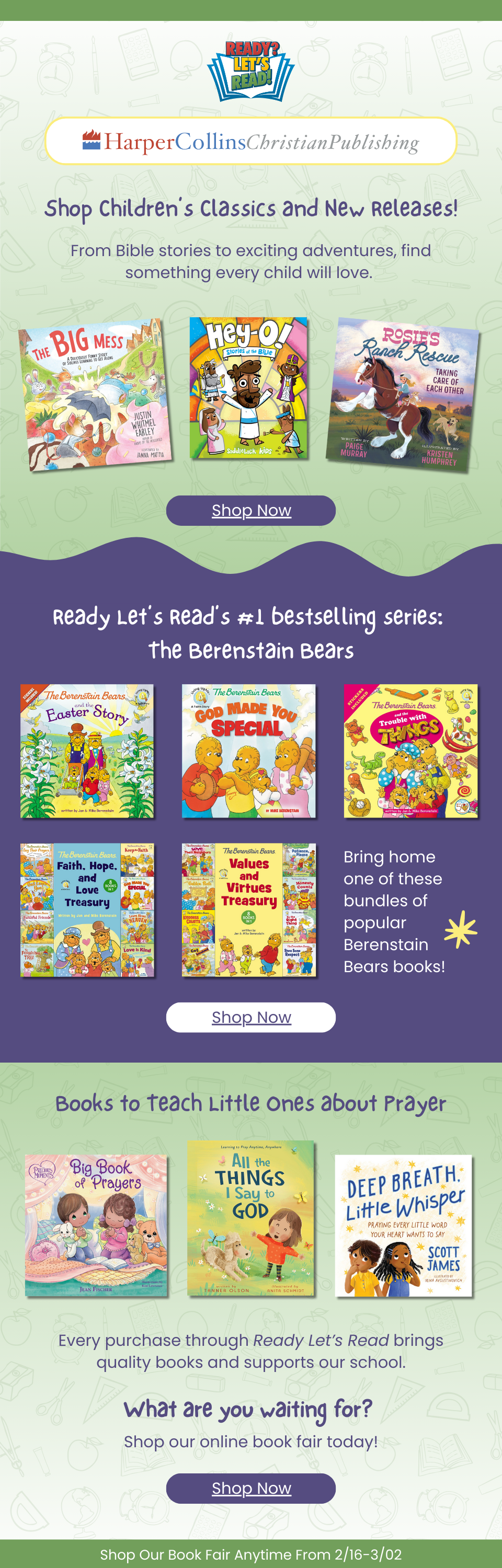
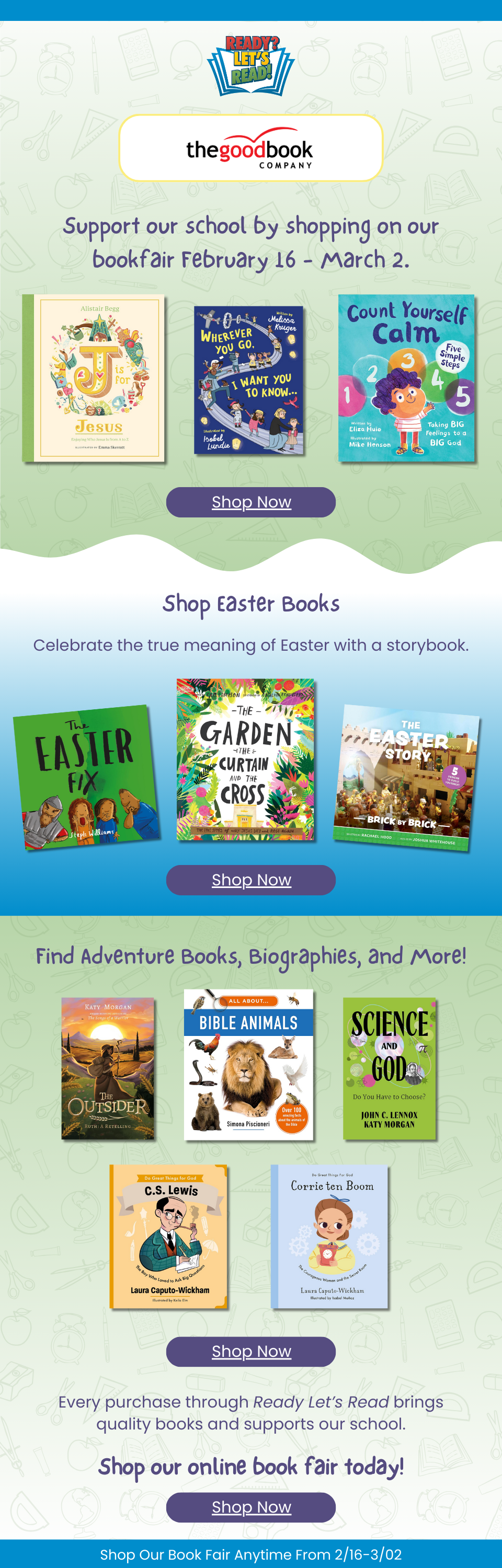

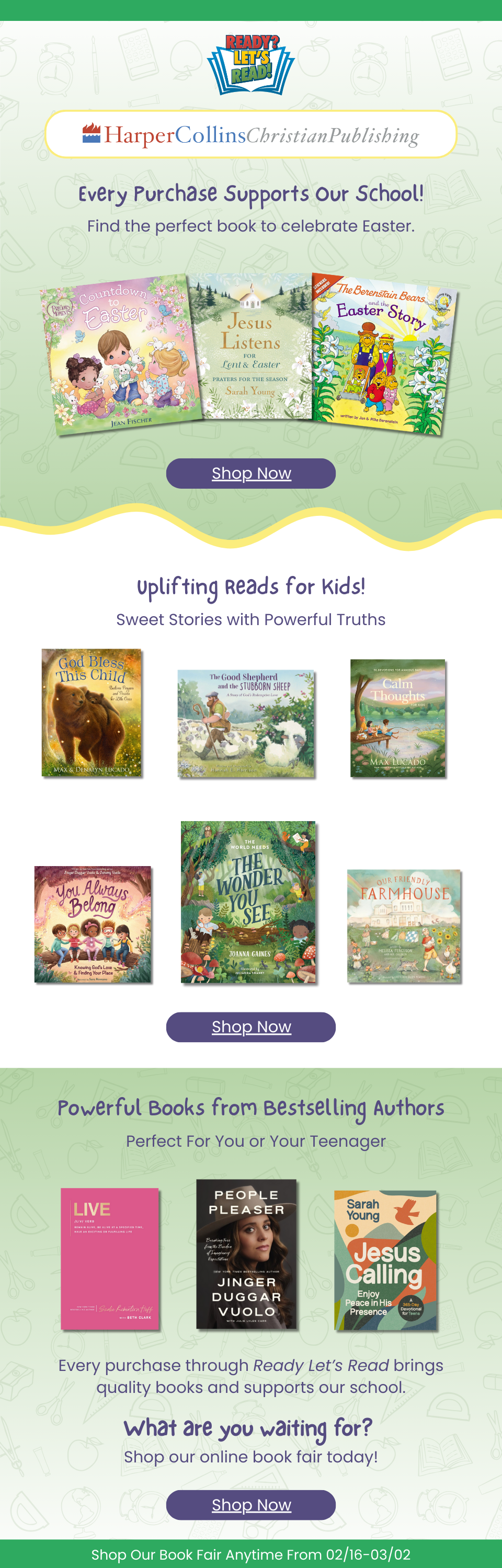
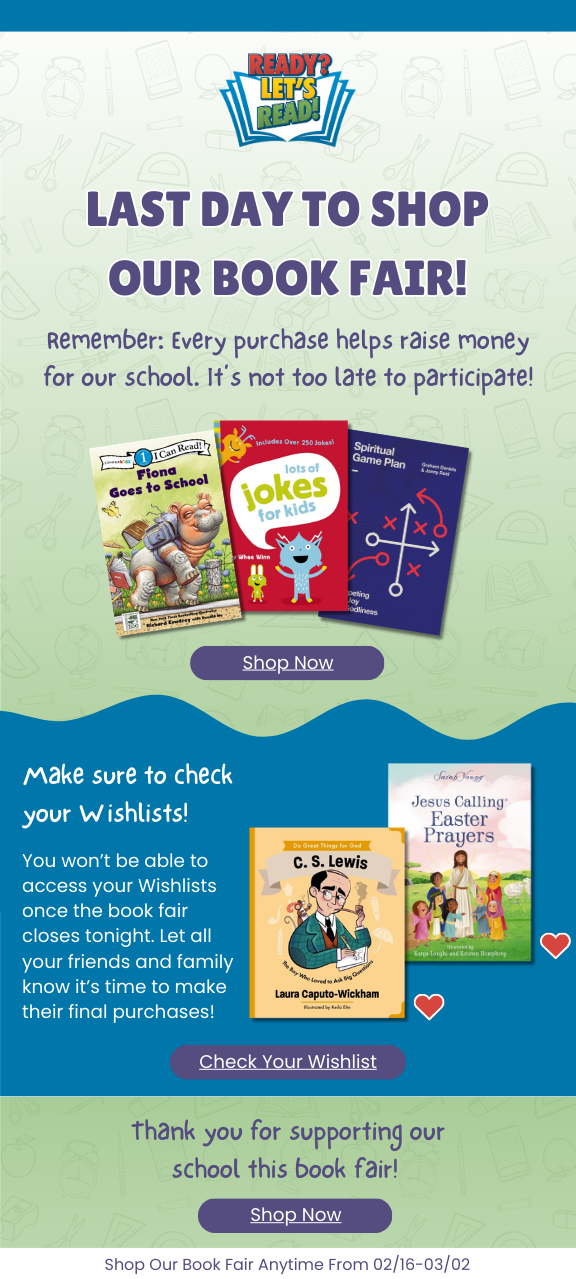
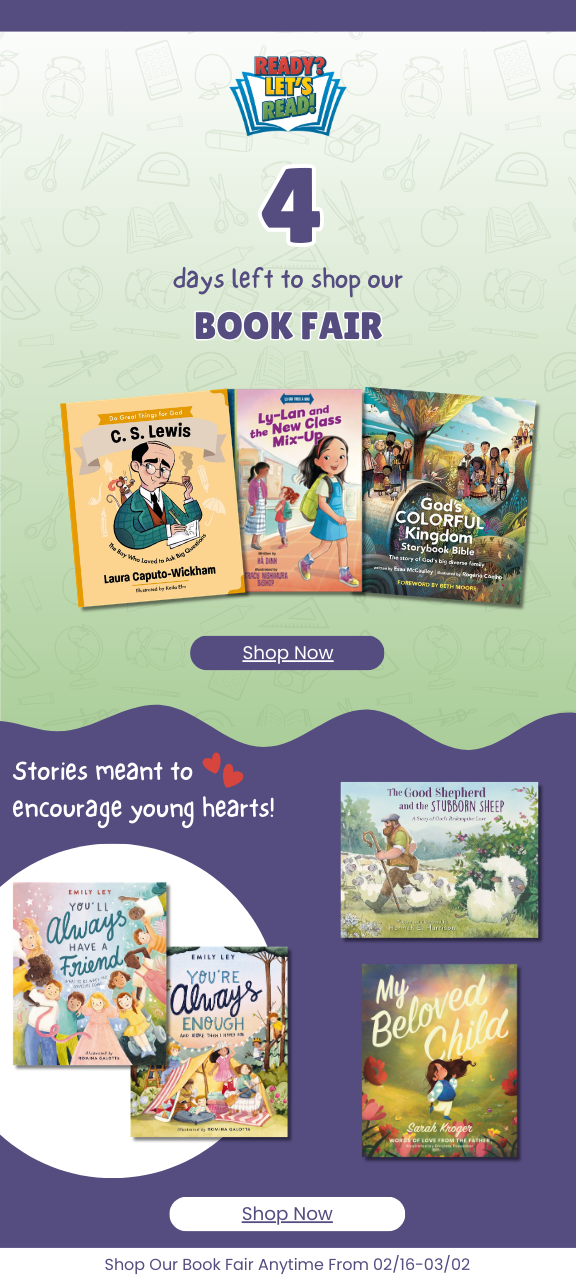
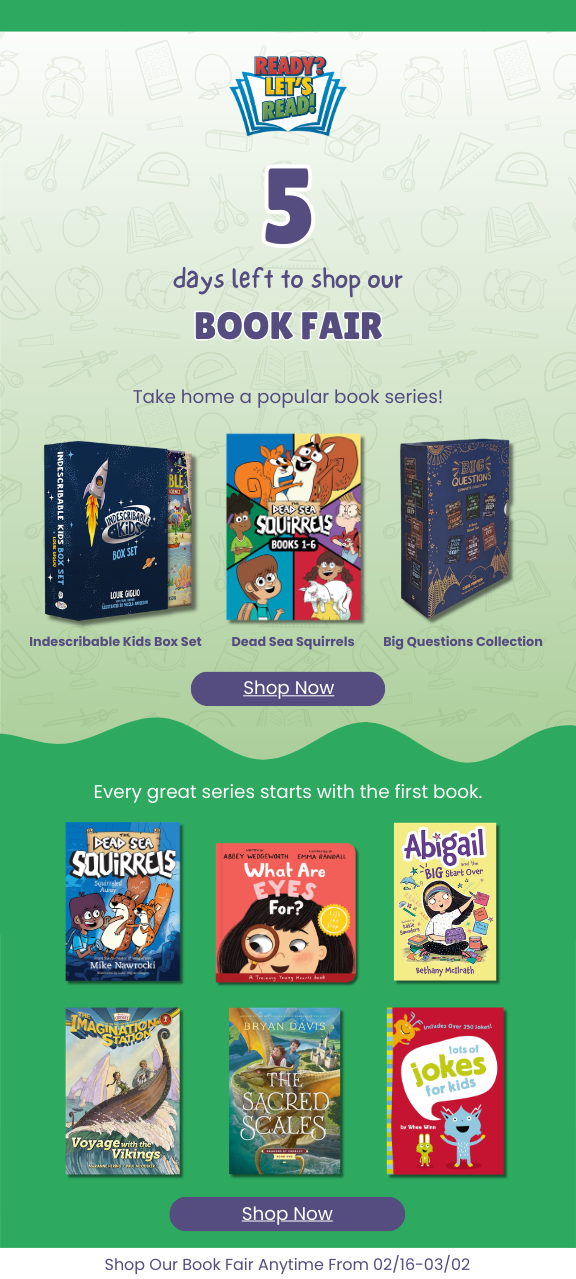
countdown emails
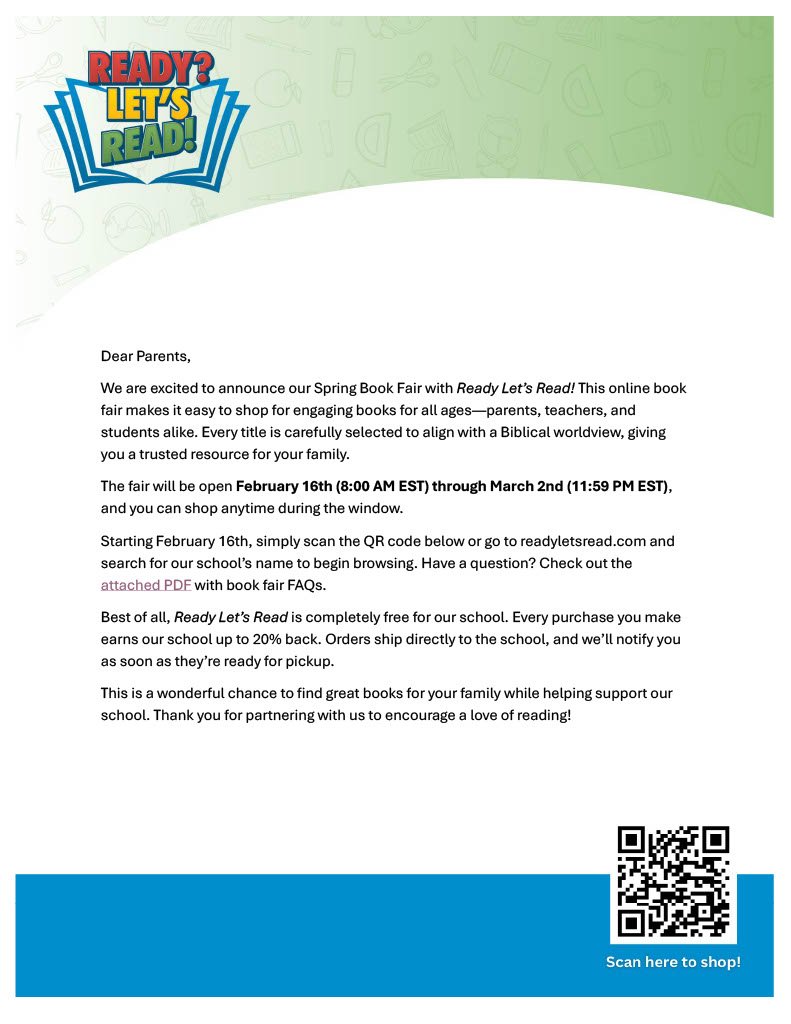
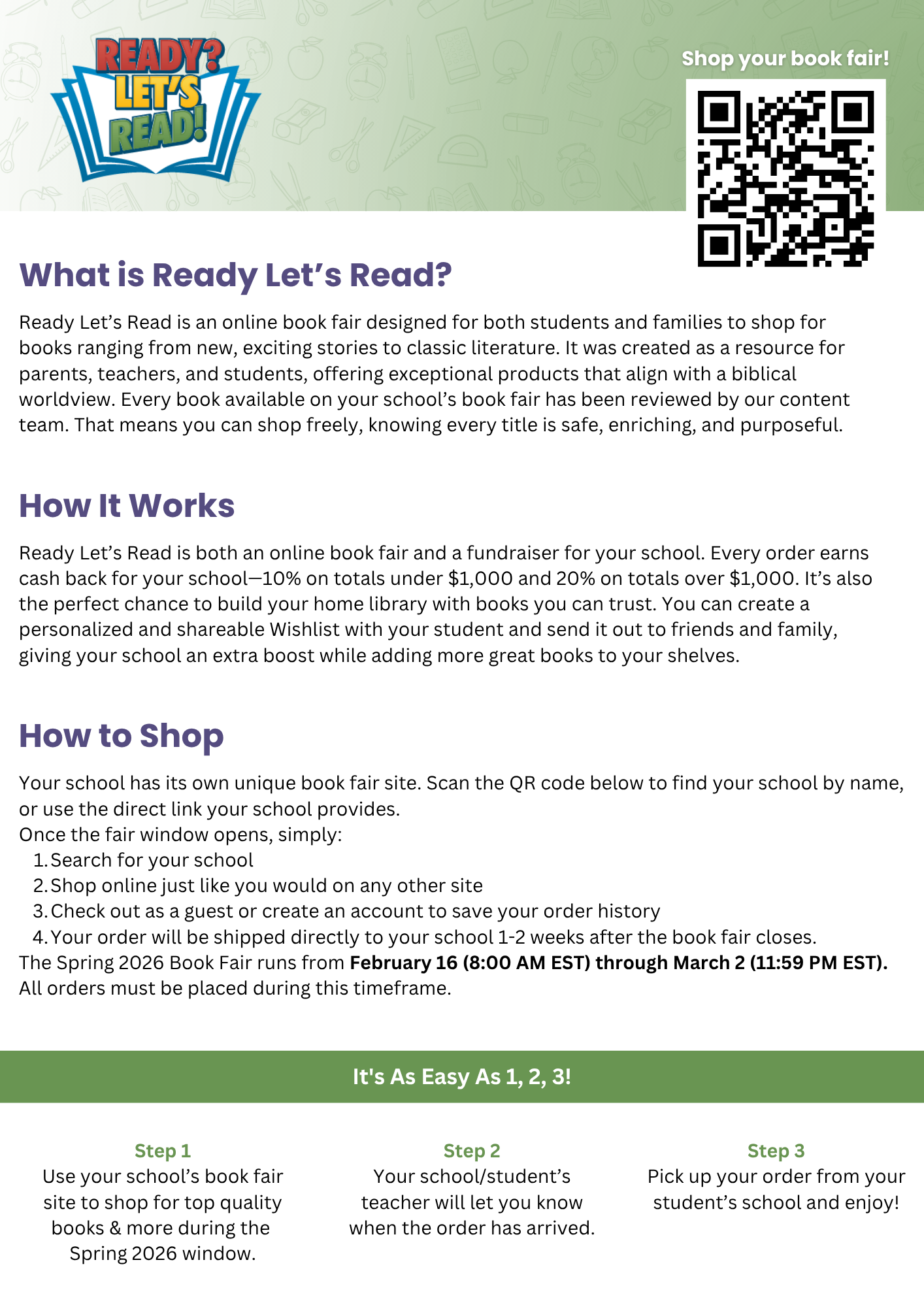
Parent Information
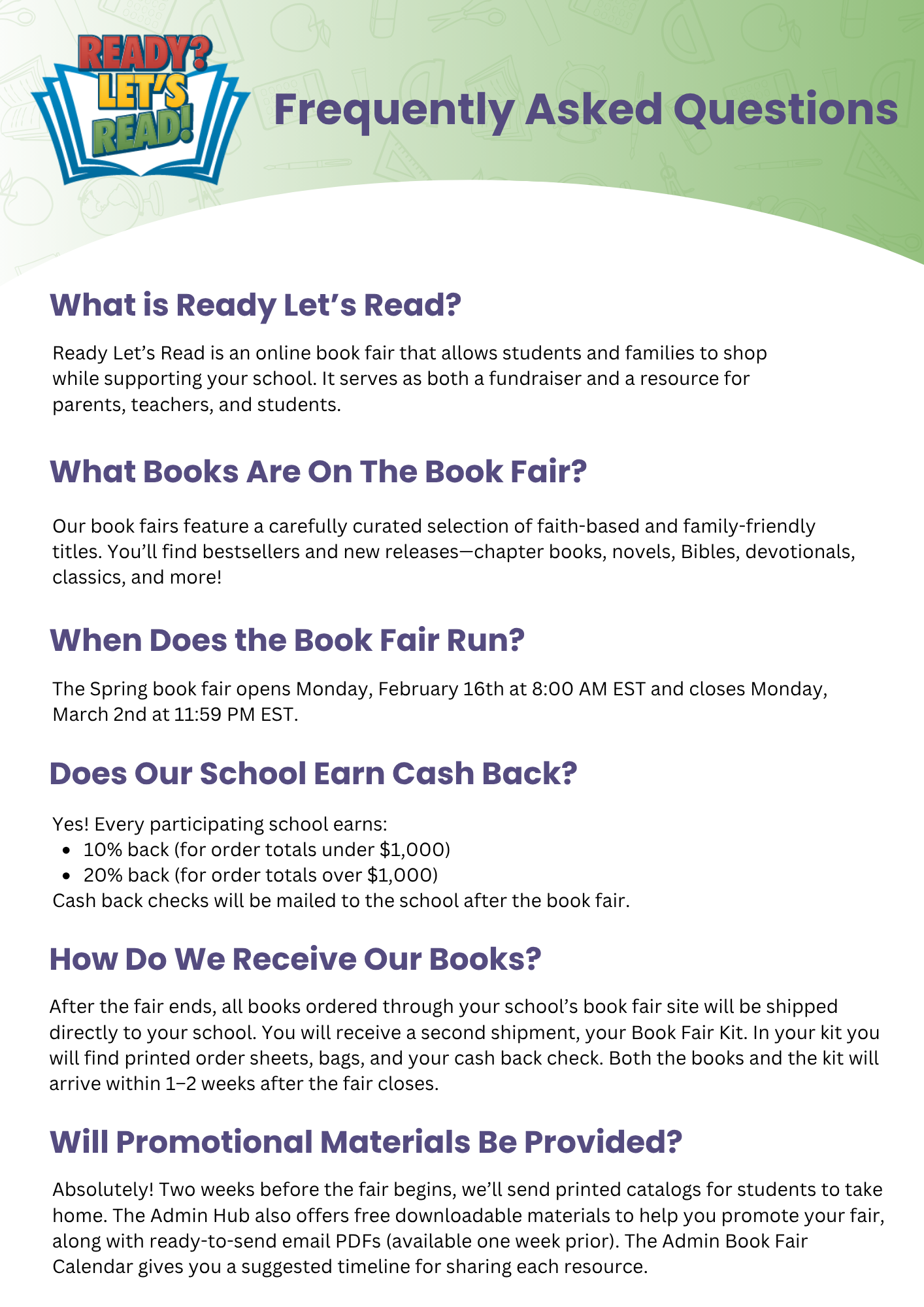
Frequently Asked Questions
Video Library
Ready Let’s Read Overview
Return Policy & Cash Back Minimum
At Ready Let's Read, all sales are final. We do not accept returns or offer refunds. If you receive a damaged or incorrect item, please contact us within 7 days of delivery, and we’ll be happy to help resolve the issue.
Cash back is issued only in amounts larger than $5. If your school’s earned cash back is less than $5 no cash back check will be issued.
Have a question?
We want to help you have a smooth and easy book fair experience, so please reach out if you need anything or if you have questions.